How do I ask staff for a PIN before they redeem an offer?
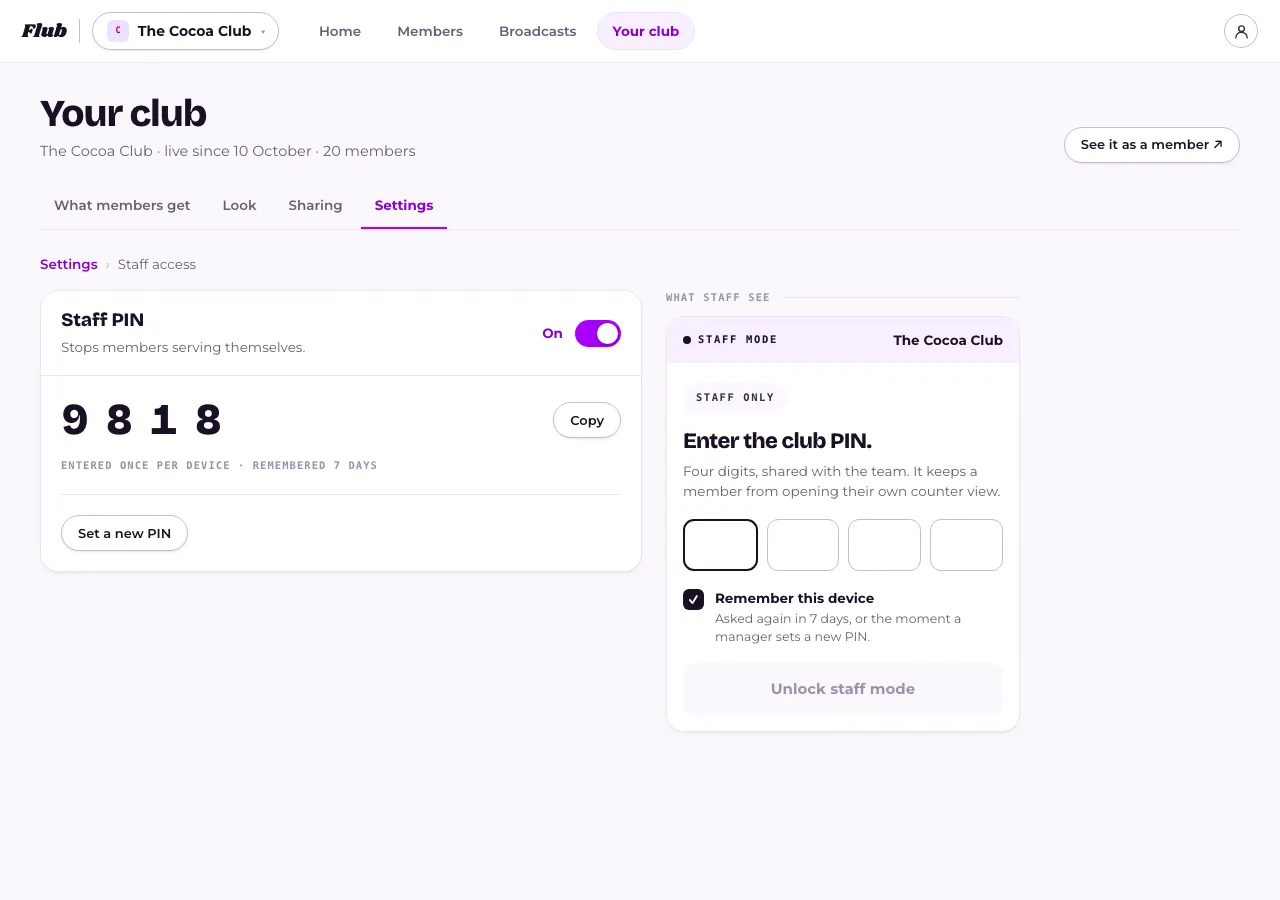
In Your club, under Settings, turn on Staff PIN. Staff type a four-digit code the first time they open a counter view on their phone, so members can't open it and serve themselves.
Last checked 26 September 2026
Turn on Staff PIN and staff have to type a four-digit code the first time they open a counter view on their phone. Without it, anyone who can open a member’s pass link could open staff mode themselves.
- Open Your club, then Settings → Staff access.
- Press the switch to turn Staff PIN on. We’ll generate four digits for you straight away.
- To pick your own, press Set a new PIN, type four digits, then press Save PIN. Avoid anything obvious — four of the same digit, or 1234.
- Press Copy to grab the digits for your team.
What happens next
Section titled “What happens next”The first time a member of staff opens a counter view on a device, they’re asked for the PIN. Once entered, that device remembers it for seven days, or until a manager sets a new one — whichever comes first.
Setting a new PIN asks every device again straight away, so only do it when you mean to lock everyone out at once, such as after a new starter or a lost phone.
If your club runs a Stamp Card, we recommend turning this on — without a PIN, a member could scan their own pass and add to their own card without anyone at the counter.
Related
Section titled “Related”© Flub 2026 | What's new | useflub.com
Flub is a trading name of FLUB INDUSTRIES LTD, a company registered in England and Wales (no. 17491066). Registered office: The Workstation, 15 Paternoster Row, Sheffield, S1 2BX, United Kingdom.