How do I add, change or turn off an offer?
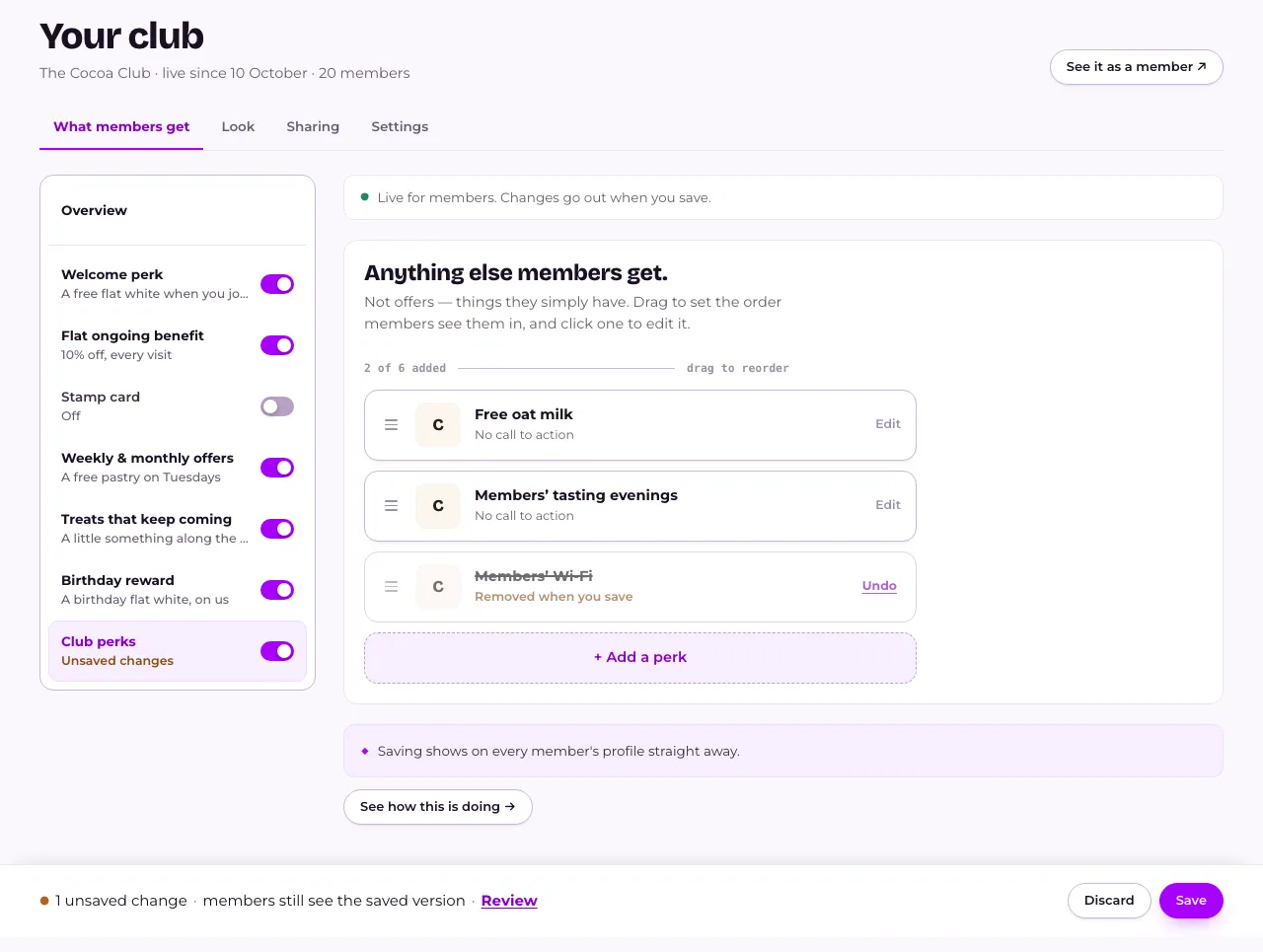
Open Your club. What members get lists every kind of offer, each with its own switch. Press one to change it, then press Save. The switch turns it on or off. If members already hold it, we ask whether they keep it or you take it back. For a one-off offer, send it from Broadcasts.
Last checked 14 October 2026
Open Your club. What members get has a menu down the left with every kind of offer your club can run, each with its own switch. For a one-off offer, like something to fill a quiet afternoon, send it as a message instead.
- Open Your club → What members get. Overview shows everything that’s switched on, the way members see it.
- In the menu, find the one you want: Welcome perk, Flat ongoing benefit, Stamp card, Weekly & monthly offers, Treats that keep coming, Birthday reward or Club perks.
- To turn it on or off, press its switch. If members already hold it and haven’t used it, we ask first: They keep it or Take it back. See How do I take an offer back?
- To change it, press its name (or Edit on its card in Overview).
- Change the offer. A bar at the bottom of the page counts your unsaved changes. To give it a picture, press Add a photo: pick from the library or press Upload. If the library is slow, it says “No photos right now · Try again”.
- Press Save in that bar. On a phone, an offer opens in a full-screen editor: step through it and press Save at the top right. Until then, members still see the saved version. See When do members see the changes I make?
Change what an offer gives and we rewrite its words to match. If you wrote the words yourself, we ask first: press Rewrite with AI or Keep my words.
If it’s off, its page says Switched off. Press Switch on and set it up to turn it on and open it.
On a phone, the tab is called Members get, and it lists only what’s switched on. Tap + Add more for the rest. Inside an offer, its switch sits at the top.
One-off offers
Section titled “One-off offers”Open Broadcasts → Write something, choose Something to claim, then Pick or make an offer → Make a new offer. See How do I send something to my members?
To send an offer you’ve used before, press Use again next to it in the Offers library, under Broadcasts.
What happens next
Section titled “What happens next”Turning an offer off stops it reaching anyone new. If members already hold it and haven’t used it, we ask whether They keep it (the default) or Take it back. Taking it back removes it from their pages and it can’t be used. Turning it back on gives it back to anyone who hasn’t used theirs, but doesn’t backdate it to anyone who missed out. See How do I take an offer back from members who haven’t used it?
Running more than one weekly or monthly schedule? The Weekly & monthly offers switch turns all of them on or off together.
Saving a change to an offer members already hold reaches their passes within a few minutes. The foot of the page tells you how many passes that is.
Related
Section titled “Related”© Flub 2026 | What's new | useflub.com
Flub is a trading name of FLUB INDUSTRIES LTD, a company registered in England and Wales (no. 17491066). Registered office: The Workstation, 15 Paternoster Row, Sheffield, S1 2BX, United Kingdom.