How do I set up a weekly or monthly offer?
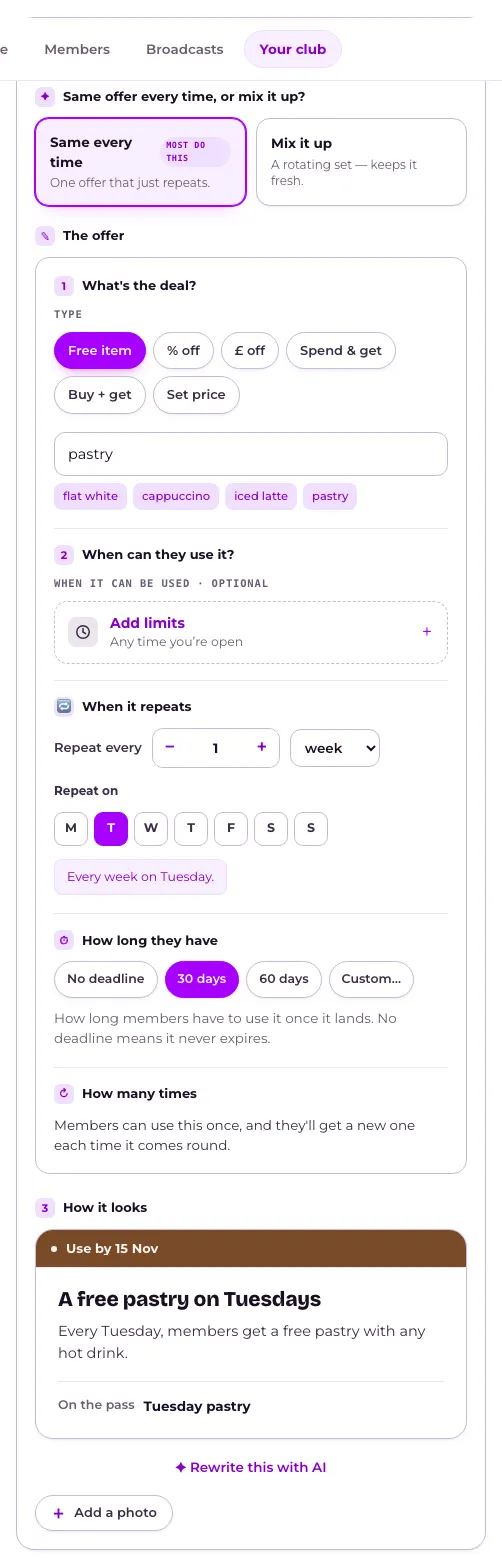
Open Your club and press Weekly & monthly offers in the menu, choose Same every time or Mix it up, set When it repeats and How long they have, then Save in the bar. Add up to five schedules; the switch beside Weekly & monthly offers turns all of them on or off together.
Last checked 14 October 2026
Give members something on a repeating day, like every Tuesday or the first of the month, from Weekly & monthly offers in Your club.
- Open Your club → What members get and press Weekly & monthly offers in the menu on the left (on a phone, in the list). Edit on its card in Overview opens the same editor.
- Choose Same every time (one offer that just repeats; most do this) or Mix it up (up to eight offers, one per occurrence, in order).
- For Same every time, set the offer under The offer, the same way as any other offer. For Mix it up, press Add offer under The rotation for each one.
- Under When it repeats, set Repeat every (week or month) and the days it falls on. For monthly, choose Day of the month, or Specific weekday for, say, the Last Friday.
- A new weekly schedule needs no deadline: each card lasts until the next one arrives, and works on the schedule’s own days, all day. To widen that or add hours, open When it can be used on the offer. For a monthly schedule, set How long they have on a computer: No deadline, 30 days, 60 days or Custom…. An unused one also goes when the next one arrives.
- Press Save in the bar at the bottom of the page. On a phone, an offer opens in a full-screen editor: step through it and press Save at the top right. See When do members see the changes I make?
No card? It’s switched off. Press Weekly & monthly offers in the menu (on a phone, + Add more first), then Switch on and set it up.
More than one schedule
Section titled “More than one schedule”Press Add another standing offer at the bottom of the page (on a phone, + Add another schedule) for up to five schedules, each with its own offer, recurrence and How long they have. ✕ Remove takes one away, the first included, as long as another is left: it shows Removed when you save, with Undo. If members already hold an offer from it, Before you save asks first: They keep it (picked for you) or Take it back, which turns Save into Save and take it back. See How do I take an offer back?
The switch beside Weekly & monthly offers in the menu (on a phone, at the top of the page) turns every schedule on or off together, and keeps your setup. Switching off asks the same question when members hold an offer.
Under the editor, Still to come lists the next dates, and Skip this one leaves a date out until you press Put it back. With several schedules, each has its own heading (Schedule 1, Schedule 2…) and a switch for that schedule alone. Turn off the last one that’s on and the whole card switches off. The link under each one opens how it’s doing.
What happens next
Section titled “What happens next”Each occurrence lands as a fresh offer on the pass, replacing any they didn’t use, so members hold one from each schedule at most. On a weekly schedule, the card reads like “Until next Friday”, or Today only on its last day. If a week is skipped, it lasts until the next card that does arrive. Change the schedule’s days and its days of use move with them, unless you set them yourself. Schedules made before 11 October 2026 keep working as they did. For set hours, see Making an offer work only on certain days or hours.
New offers land overnight, and members hear at 8am, after quiet hours. Members with your pass in their wallet get a notification headed with your club’s name. If you’ve ticked Text, a member with a verified mobile gets a text instead. Members who gave an email address get an email as well. The same offer again within a week, like a daily coffee, updates the pass quietly after the first. A changed offer, the next in a Mix it up run, or a weekly or monthly one always notifies by push. Members don’t need to be active, or to have a wallet, to get any of it: see Do my members need Apple Wallet or Google Wallet?
Each schedule has How members hear about it too. A weekly offer emails when it starts or changes, not every week, and email about one schedule goes at most once in 25 days. A new member’s welcome email already names the weekly offer that’s on, so they get no second email about it in their first week. See How do my members hear about an automated offer?
Related
Section titled “Related”© Flub 2026 | What's new | useflub.com
Flub is a trading name of FLUB INDUSTRIES LTD, a company registered in England and Wales (no. 17491066). Registered office: The Workstation, 15 Paternoster Row, Sheffield, S1 2BX, United Kingdom.