How do I choose what shows on my members' passes?
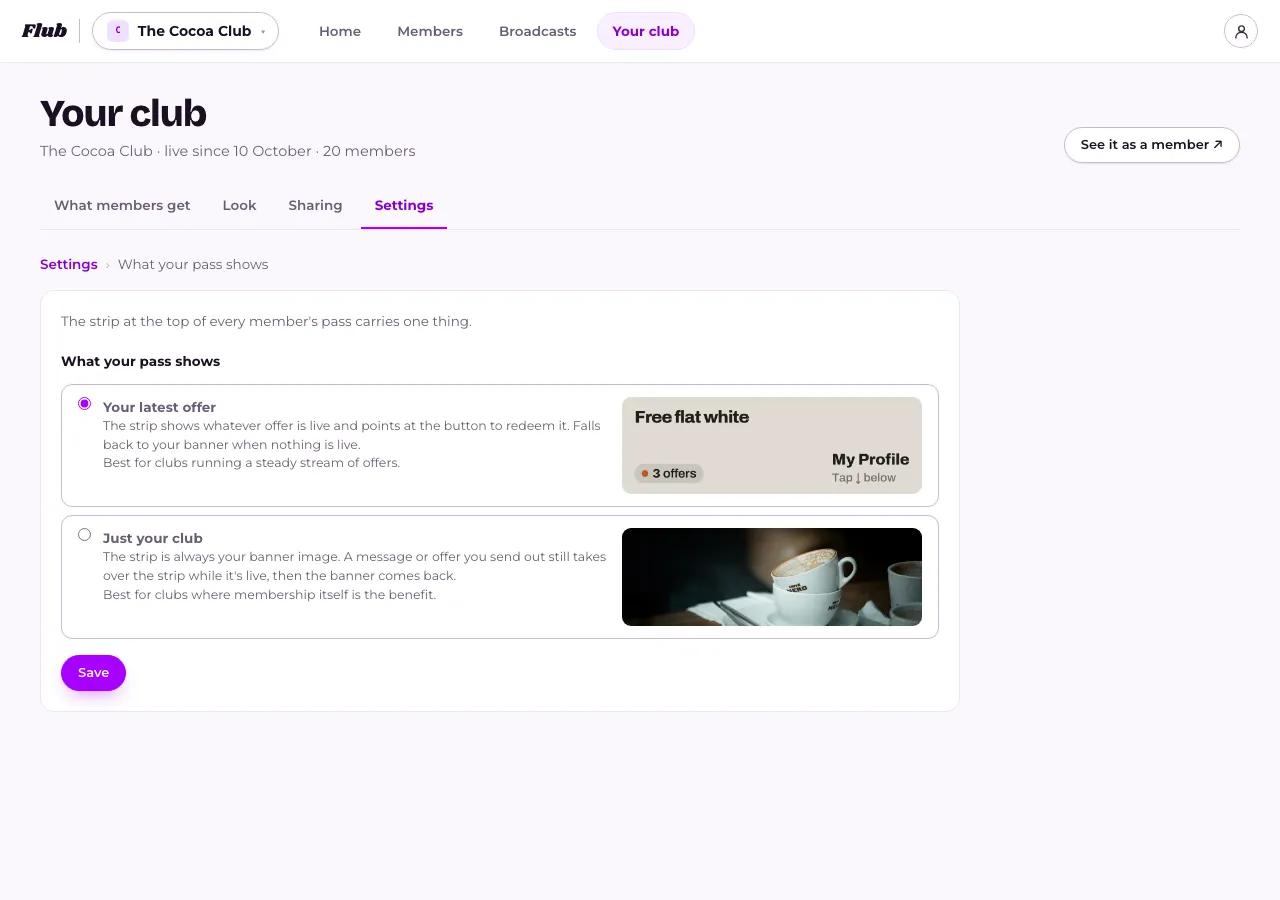
In Your club, under Settings, open What your pass shows and choose whether the strip at the top of every member's pass follows your latest offer or always shows your own banner picture.
Last checked 10 October 2026
The strip at the top of every member’s pass can only carry one thing. Choose which, under Settings.
- Open Your club, then Settings → What your pass shows.
- Choose Your latest offer or Just your club.
- Press Save.
What happens next
Section titled “What happens next”Your latest offer shows whatever offer is live, with the button to redeem it right there. When nothing is live, it shows the member’s Stamp Card if they have one on the go, then a club perk you’ve marked as Pass hero, then your banner picture. It suits a club running a steady stream of offers.
Just your club always shows your banner picture instead. A message or offer you send out still takes over the strip while it’s live, then the banner comes back — so this isn’t a way to hide offers, only what shows the rest of the time. It suits a club where membership itself is the benefit. With no banner picture set, the pass shows no strip at all until you add one under Picture in Your club → Look.
If your club has set up a Stamp Card, a third choice appears — Their stamp card — which shows each member how far along their own card is instead.
Saving reaches every member’s pass within a few minutes.
Related
Section titled “Related”© Flub 2026 | What's new | useflub.com
Flub is a trading name of FLUB INDUSTRIES LTD, a company registered in England and Wales (no. 17491066). Registered office: The Workstation, 15 Paternoster Row, Sheffield, S1 2BX, United Kingdom.