How do I give my club its name, logo and colours?
Open Your club, then Look. Change the name, logo, icon, colours, fonts and picture there, watch the preview, and press Save in the bar at the bottom. If members already have your pass, it updates within a few minutes.
Last checked 20 October 2026
Open Your club, then Look. Everything about how your club looks is on that one page, with a preview beside it. Press Save in the bar at the bottom when you’re happy.
- Open Your club → Look.
- Under Name, type your own or tap one of the ideas underneath (More shows three more). It’s the name on passes and every message you send.
- Under Logo and icon, press Change (or Upload) next to Logo, the wide one for your join page and club page. Press Upload your own: a PNG or SVG with a transparent background works best.
- Press Change next to Icon, the square mark on wallet passes. Choose Just the initials, or press Upload (square, at least 256px).
- Under Colours, tap Background, Wording or Buttons to change it. Put back everything we found takes you back to where we started.
- Under Fonts, choose the fonts for your club’s pages.
- Under Picture, press Change to pick a photo from our library or upload your own (at least 1,125 pixels wide; we resize bigger photos and crop them to fit, and tell you straight away if one won’t work). It goes in the pass strip and at the top of your club page. If the library is slow to load, it says “No photos right now · Try again” after a few seconds. Press Try again, or press Upload, which works either way.
- Press Save in the bar at the bottom. It appears as soon as you change something. Discard asks “Discard 1 change?” first: press Discard to throw your changes away, or Keep editing.
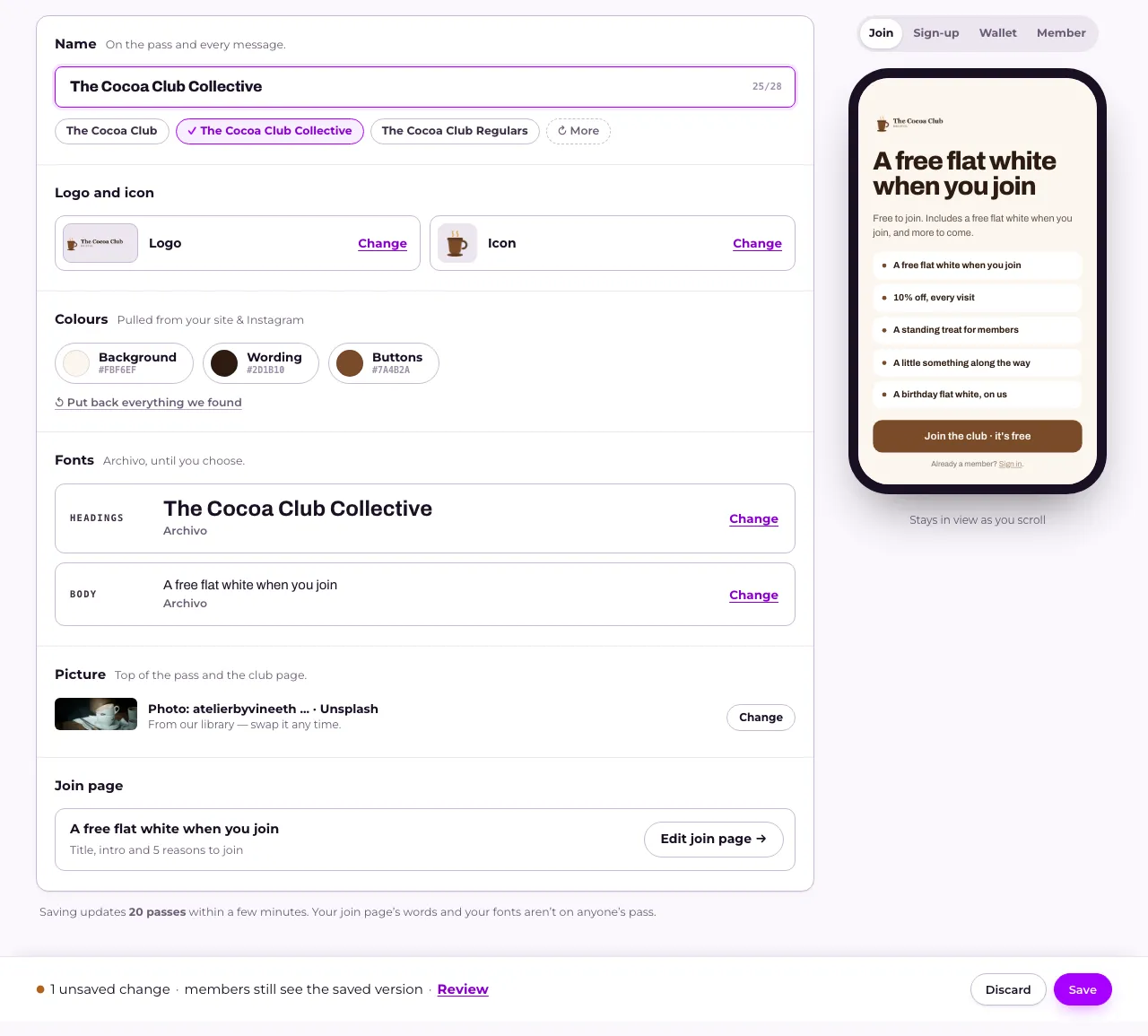
The preview shows your join page (while it’s on), sign-up form, wallet pass and member page. Tap Join, Sign-up, Wallet or Member above it to switch between them. On a phone, the preview is a Preview row: tap it to open it.
What happens next
Section titled “What happens next”Your name, logo and colours appear on your join page, passes and club page. On a draft, saving says ✓ Saved and it all goes out when you launch. On a live club it says ✓ Saved · members see it now, and passes members already have update within a few minutes.
Leave the page before saving and we’ll ask Save your changes? Press Save and leave, or Leave without saving.
A club made from a sketch starts without a logo, so it shows its first letter until you upload one. If the sample club was still called Your Café Club (the name you get from tapping a kind of place without giving a website), it starts without a name: under Name, pick one of the ideas or type your own, then press Save.
The words on your join page are under Join page: see How do I change the page people see before they join?
Related
Section titled “Related”© Flub 2026 | What's new | useflub.com
Flub is a trading name of FLUB INDUSTRIES LTD, a company registered in England and Wales (no. 17491066). Registered office: The Workstation, 15 Paternoster Row, Sheffield, S1 2BX, United Kingdom.