How do I make an offer work only on certain days or hours?
Open the offer's editor from Your club, press Add limits under When it can be used, pick the days and the hours, press Save limits, then Save. Members see the hours alongside the offer, and outside them it can't be claimed, though staff can still give it anyway.
Last checked 10 October 2026
Give the offer its own days and hours, so it only works when you want the extra trade, like weekday mornings or a quiet Monday. Outside those hours members can see it but can’t claim it.
- Open Your club and press Edit on the offer’s card.
- Under When it can be used, press Add limits.
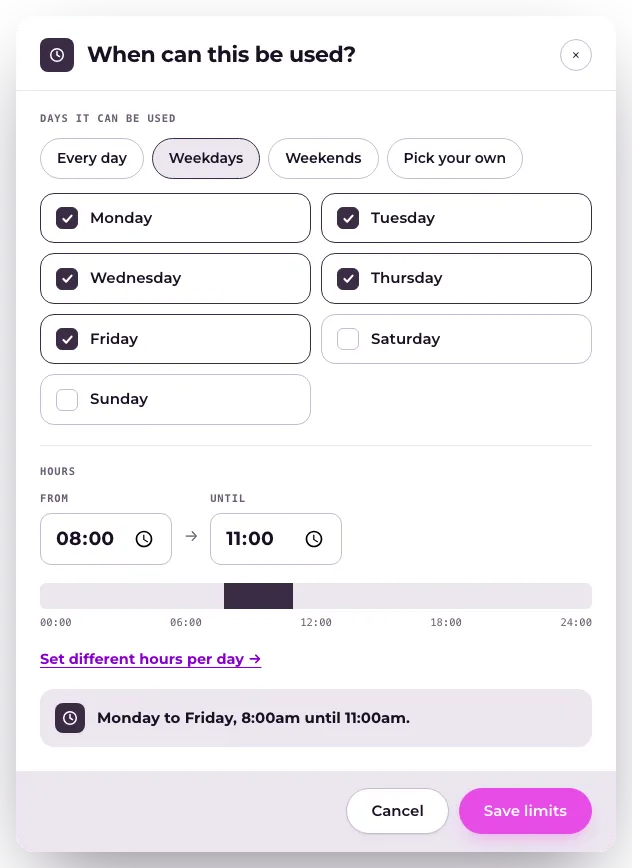
- Under Days it can be used, choose Every day, Weekdays, Weekends, or Pick your own.
- Under Hours, set From and Until. For different hours on different days, press Set different hours per day.
- Press Save limits.
- Press Save in the bar at the bottom of the page to save the offer with its new hours. On a phone, an offer opens in a full-screen editor: step through it and press Save at the top right.
The row now shows the days and hours, with Only in these hours underneath.
What happens next
Section titled “What happens next”Members see the days and hours alongside the offer. Outside them, the offer stays there, dimmed, until its hours come round again. Once you save, new hours apply straight away, even to offers members already hold.
At the counter, staff see the offer’s hours on it. Outside them, it’s marked Outside its hours, with Hold to give it anyway if you’re happy to make an exception. That’s recorded like any other redemption.
To go back to any time you’re open, press the × next to the hours, or Remove limits in the window that sets them. Then press Save.
Related
Section titled “Related”© Flub 2026 | What's new | useflub.com
Flub is a trading name of FLUB INDUSTRIES LTD, a company registered in England and Wales (no. 17491066). Registered office: The Workstation, 15 Paternoster Row, Sheffield, S1 2BX, United Kingdom.