How do I send something to my members?
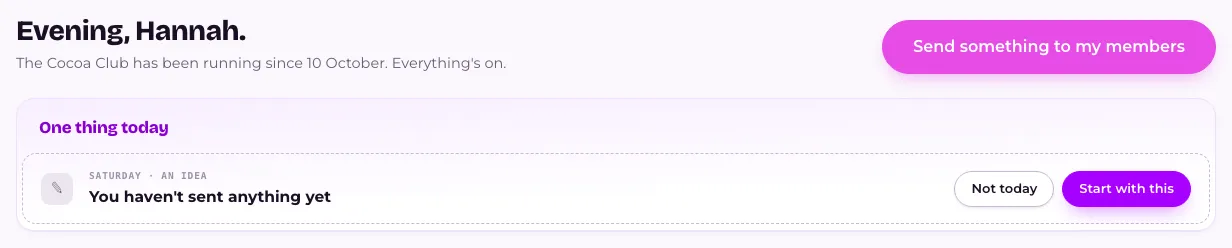
Press Send something to my members on Home, or Write something on Broadcasts. Pick what you're sending, who gets it and where it goes, write the message, then send it, schedule it or save it as a draft.
Last checked 30 October 2026
Press Send something to my members on Home, or Write something on Broadcasts. Then work through four quick decisions — what you’re sending, who gets it, where it goes and what it says — before you send it, schedule it, or save it for later.
- Open Home and press Send something to my members (or open Broadcasts and press Write something).
- Choose Something to claim or Just a message. An offer lands on the member’s pass the moment it sends; a message is just news, with nothing to claim. For an offer, press Pick or make an offer, then pick one or press Make a new offer.
- Choose who gets it — Everyone, or Choose people to search for particular members by name.
- Choose where it goes — Push is on to start with; switch on Email and Text too if you want them. Push and email are free; text uses a credit for each person it reaches.
- Write The line — the words everyone will see, on every channel. Add more detail for the email, or a button, if you’d like one.
- Press Send it now, Send later, or leave it as a draft and come back to it.
Texts have less room
Section titled “Texts have less room”Every text starts with your club’s name, so members know who it’s from, and ends with “Reply STOP to opt out” on its own line, so they can always say no. We add both for you. They use up some of the room, so a text holds a little less than you might expect.
With Text switched on, the counter under The line shows exactly how much fits, such as “126 / 138 · a text fits 138”. The text preview shows a ”…” where a long line would be cut. A button to your club page or your own link takes room too, and the counter already allows for it.
A line that won’t fit in one text isn’t sent. The composer tells you how many characters to trim, on a phone too. Push and email have no such limit.
Why every text? The law says marketing texts must tell people how to stop them, and your club’s privacy page promises it.
If a member replies STOP, they stop getting your club’s texts but still get push and email. See Who gets my message, and by which channel?.
Making a new offer as you write
Section titled “Making a new offer as you write”Press Make a new offer and you get the same offer editor as in Your club, in the order you’d think it through.
- What’s the deal? Choose the kind of offer and fill in what they buy and what they get.
- When can they use it? Add limits sets the days and hours, such as weekend mornings for a brunch deal. Until is the last day members can use it, counted from when the message goes out, so you can announce something a few days early.
- How it looks. Press Write my offer and we write the words for you. Tap any line on the card to change it, or press Write it differently for another version.
If you change the deal after the words are written, we ask before rewriting: Update the words rewrites the lines you didn’t type yourself, and Keep my words leaves them as they are.
Leave Keep it in your offers so you can use it again ticked to find it again in the Offers library. Press Create and attach and the offer is added to your message.
Sending an offer you’ve used before
Section titled “Sending an offer you’ve used before”Open Broadcasts → Offers library and press Use again next to it. A new message opens with that offer attached. See How do I see every offer I’ve made, and send one again?
Sending yourself a test first
Section titled “Sending yourself a test first”Press Send me a test, next to Save as draft (on a phone, under the clock), once you’ve written The line. A box called Send yourself a test opens with your own email address filled in. Press Send test and the email arrives just as members would get it, with “TEST:” at the start of the subject.
Tick Text and add your mobile number to get a text too: it starts “TEST:” and uses one credit, taken only if the text goes. Push can’t be tested, so open your own pass to see it. A test never goes to a member. You can send up to 10 an hour, and an address that has bounced is refused.
What happens next
Section titled “What happens next”Sending it now takes you to a receipt showing who it went to — straight away for push and email, and once the texts have gone. Choosing Send later schedules it for a date and time you pick instead; see How do I send something later instead of right now?. Anything you leave unfinished is saved as a draft, ready to carry on with.
Related
Section titled “Related”© Flub 2026 | What's new | useflub.com
Flub is a trading name of FLUB INDUSTRIES LTD, a company registered in England and Wales (no. 17491066). Registered office: The Workstation, 15 Paternoster Row, Sheffield, S1 2BX, United Kingdom.