How do I get my staff scanning passes at the counter?
When a member shows their pass, staff just point their phone's own camera at the QR code — no scanner app needed. If your club has a Staff PIN, they type it in once per device.
Last checked 6 October 2026
When a member shows you their pass, there’s nothing to install and no separate scanner to find — staff use the ordinary Camera app already on their phone. If your club has a Staff PIN, the first time on a device it asks for that too.
- Ask the member to show their pass, then open the phone’s own Camera app and point it at the QR code.
- The camera recognises the link and opens Staff mode, showing what that member can have right now.
- If your club has a Staff PIN and this device hasn’t typed it recently, it lands on Enter the club PIN. instead. Type the four digits and press Unlock staff mode.
- Leave Remember this device ticked so it isn’t asked again for seven days, or until you set a new PIN.
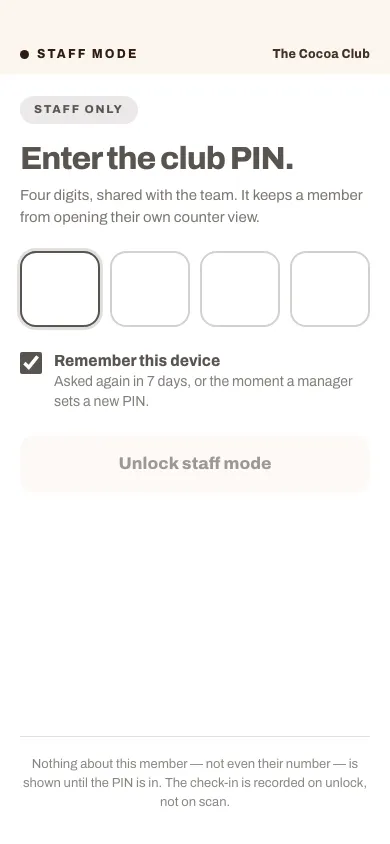
Once unlocked, staff mode shows what that member can have right now.
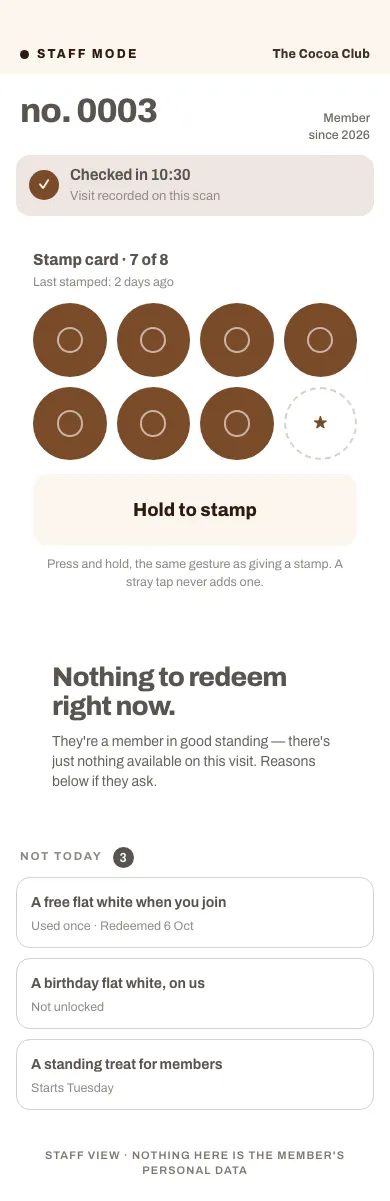
What happens next
Section titled “What happens next”Without a PIN, staff mode is one tap away for anyone with the pass link — which is why we recommend turning the PIN on. With it on, three wrong tries in a row and that device has to wait 15 minutes before trying again; scanning the pass again doesn’t reset the wait. Setting a new PIN signs every device out at once, so only do that when you mean to.
Nothing about the member — not even their number — shows until the PIN is in, and no visit is recorded for a wrong or unfinished attempt. A successful scan does record a visit, which is what Visits counts on How it’s going. If staff don’t scan, those numbers stay low.
Related
Section titled “Related”© Flub 2026 | What's new | useflub.com
Flub is a trading name of FLUB INDUSTRIES LTD, a company registered in England and Wales (no. 17491066). Registered office: The Workstation, 15 Paternoster Row, Sheffield, S1 2BX, United Kingdom.